
Create your account and first project
Sign up for Opskeet with your email, add your website as a project, and finish setup in about 5 minutes. No password.
Opskeet works per project: one website or product with its own chat, inbox, help center and team. Your marketing site, app and subdomains can share one project.
Sign up
- Go to opskeet.com/app.
- Enter your email and click Continue with email.
- Enter the 6-digit code we email you. It expires in 5 minutes.
There's no password. Signing in and signing up use the same form.
New accounts then set a name and photo. Your team and visitors see them.
Add your project
- Enter your Website address. The Name fills in from it, and you can change it.
- Click Continue.
While you continue, Opskeet reads your site. It picks up your brand color and language, adds your site to the AI's knowledge, and adds a few starter tags and canned replies. It also spots another chat tool already on your site.
Choose how to set up
- Let your AI agent do it: Claude, ChatGPT or Cursor installs the chat, matches your brand and moves your data. It asks before anything visitors see. See Connect Claude, ChatGPT, Cursor and other AI agents.
- Set it up here: a few short steps, about 5 minutes.
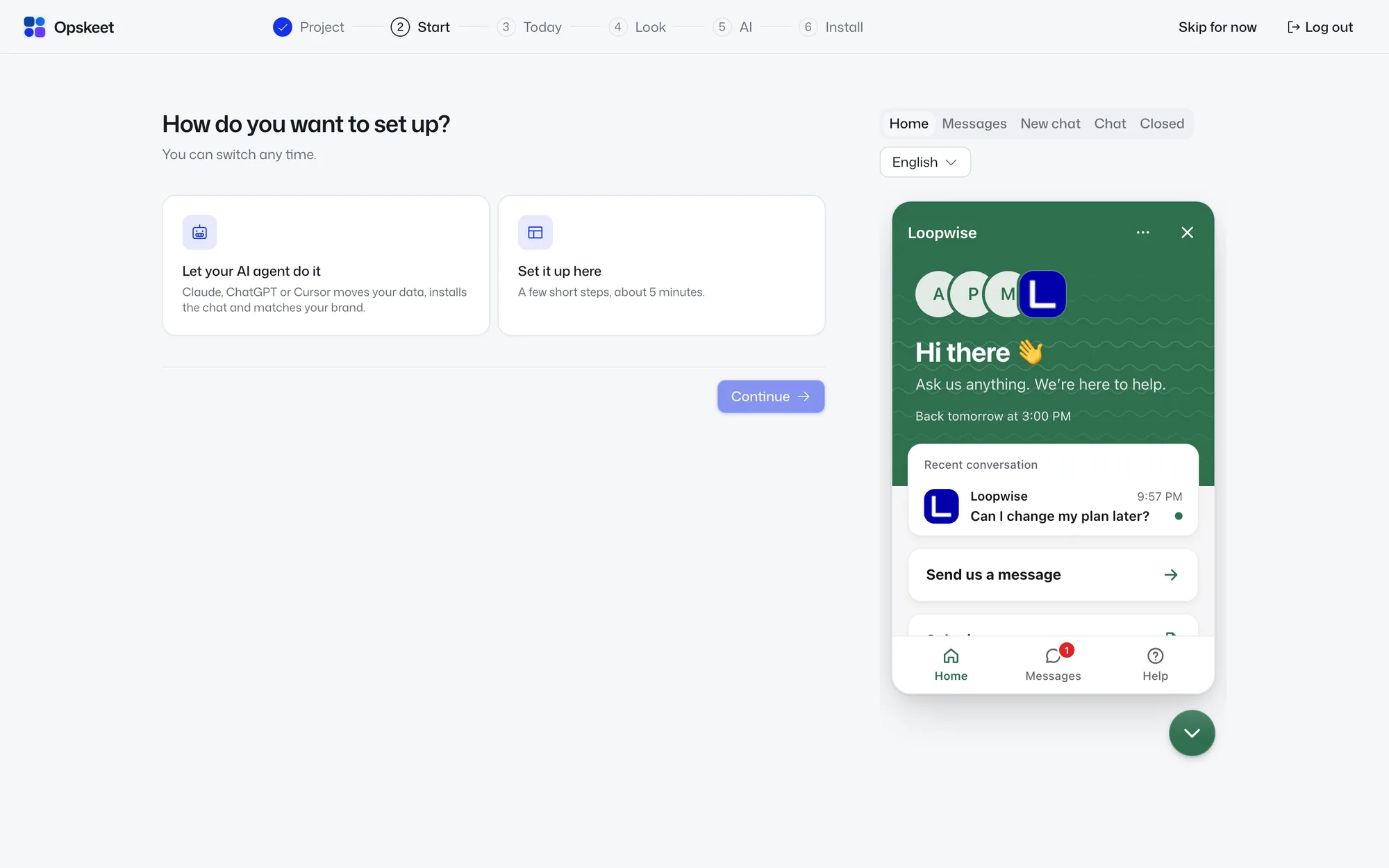
The steps set your look, try the AI, install the chat and pick a plan. A live preview of your chat sits on the right. Each step saves as you go, and Skip for now takes you straight to the inbox.
The AI starts off, so you can try it first. Turn it on later on the AI page.
Add more projects
Click your project name at the top left, then Add project. Your plan sets how many projects you can run. See Plans, free trial and billing.
Next steps
Did this help?
Related articles
- Install the chat widget on your websiteAdd Opskeet's live chat widget to your website with one script tag, check it's installed, and fix common install problems.
- Add Opskeet to WordPress, Shopify, Webflow or Next.jsStep-by-step instructions to add the Opskeet live chat script to WordPress, Shopify, Webflow and Next.js sites.
- The getting started checklistWhat each step in Opskeet's Get started checklist does, how steps tick off on their own, and how to hide the checklist.
- Share a chat link without installing anythingEvery Opskeet project has a hosted chat page. Link to it from emails, apps, social profiles or anywhere the widget can't go.
- Search and do anything with ⌘KUse Opskeet's command menu to search chats, contacts and articles, jump to any setting, and act on chats in plain words.