
The getting started checklist
What each step in Opskeet's Get started checklist does, how steps tick off on their own, and how to hide the checklist.
Updated
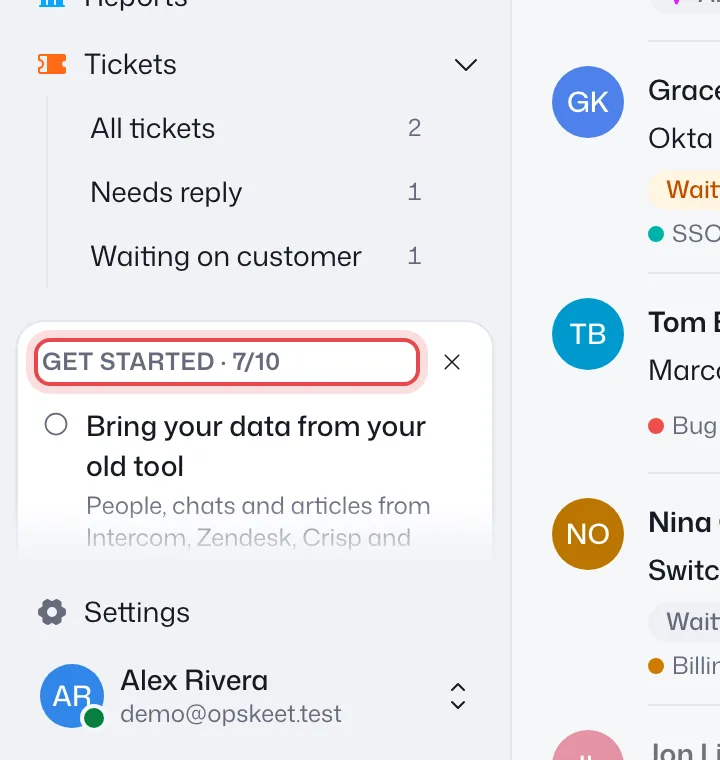
The Get started card at the bottom of the sidebar shows what's left to set up. Steps tick off by themselves when you do them.
The steps
| Step | Done when |
|---|---|
| Add the chat to your site | The chat loads on your website. |
| Bring your data from your old tool | You import from your old tool. Hidden if you said you use nothing. |
| Get your first chat | A real visitor writes in. |
| Add what the AI should know | A knowledge source is ready. |
| Try the AI | Someone asks the AI a question in Try it. |
| Make the chat yours | You save a change to the chat's look or wording. |
| Invite a teammate | Someone joins, or an invite is waiting. |
| Get notified of new chats | You turn on notifications on a device. |
| Connect your AI agent | You connect Claude, ChatGPT, Cursor or another agent. |
| Start your free trial | You start a plan. Shown to the person who pays, once the chat is on your site. |
The card shows up to 3 open steps at a time. Click a step to go straight to it.
Agents only see the steps that are theirs: first chat, trying the AI, notifications and connecting an agent.
Hide it
Owners and admins can click × on the card. It hides for the whole team. It also goes away once every step is done.
Related
Did this help?
Related articles
- Create your account and first projectSign up for Opskeet with your email, add your website as a project, and finish setup in about 5 minutes. No password.
- Install the chat widget on your websiteAdd Opskeet's live chat widget to your website with one script tag, check it's installed, and fix common install problems.
- Add Opskeet to WordPress, Shopify, Webflow or Next.jsStep-by-step instructions to add the Opskeet live chat script to WordPress, Shopify, Webflow and Next.js sites.
- Share a chat link without installing anythingEvery Opskeet project has a hosted chat page. Link to it from emails, apps, social profiles or anywhere the widget can't go.
- Search and do anything with ⌘KUse Opskeet's command menu to search chats, contacts and articles, jump to any setting, and act on chats in plain words.