
Search and do anything with ⌘K
Use Opskeet's command menu to search chats, contacts and articles, jump to any setting, and act on chats in plain words.
Updated
Press ⌘K on Mac or Ctrl+K on Windows, or click Search in the sidebar.
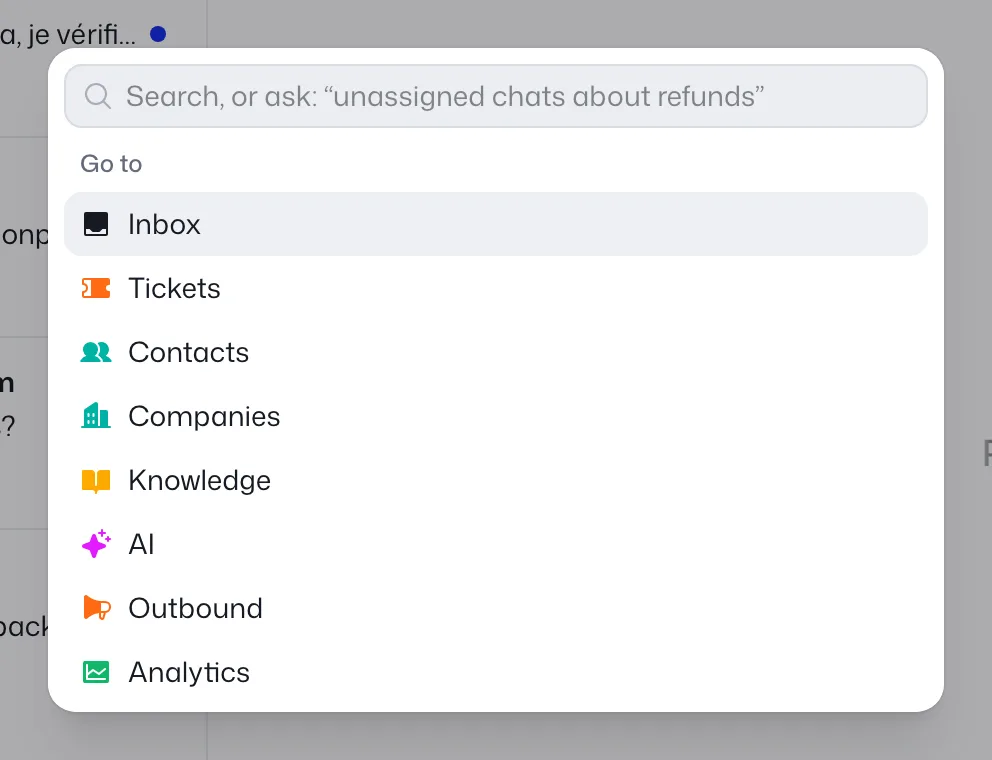
Search
Type 2 or more characters to search Articles, Chats & tickets, Contacts and Companies.
Jump anywhere
- Go to: any page, like Inbox, Contacts, Knowledge or Reports.
- Settings: every settings page. Type a setting's name, like "auto close", to open its page with that setting highlighted.
- All projects: your projects at a glance, plus Brand and Billing if you own a project.
- Switch project: when you're on more than one.
Create things
Actions include New article, New canned reply, Invite teammate, New company and Add project, plus switching between light and dark theme.
Ask in plain words
Type 3 or more words and pick Ask:
- Find chats: "unassigned chats about refunds" opens the inbox with those filters.
- Act on the open chat: "close this and tag billing". You see the changes first, then click Apply. Nothing changes until you do.
It can close, reopen, assign, tag, snooze and mark priority.
Related
Did this help?
Related articles
- Create your account and first projectSign up for Opskeet with your email, add your website as a project, and finish setup in about 5 minutes. No password.
- Install the chat widget on your websiteAdd Opskeet's live chat widget to your website with one script tag, check it's installed, and fix common install problems.
- Add Opskeet to WordPress, Shopify, Webflow or Next.jsStep-by-step instructions to add the Opskeet live chat script to WordPress, Shopify, Webflow and Next.js sites.
- The getting started checklistWhat each step in Opskeet's Get started checklist does, how steps tick off on their own, and how to hide the checklist.
- Share a chat link without installing anythingEvery Opskeet project has a hosted chat page. Link to it from emails, apps, social profiles or anywhere the widget can't go.