
Install the chat widget on your website
Add Opskeet's live chat widget to your website with one script tag, check it's installed, and fix common install problems.
One script adds the chat, help center search and analytics to your site.
Copy your code
- Go to Settings → Install.
- Pick your platform tab: HTML, WordPress, Webflow, Shopify or Next.js.
- Click Copy code.
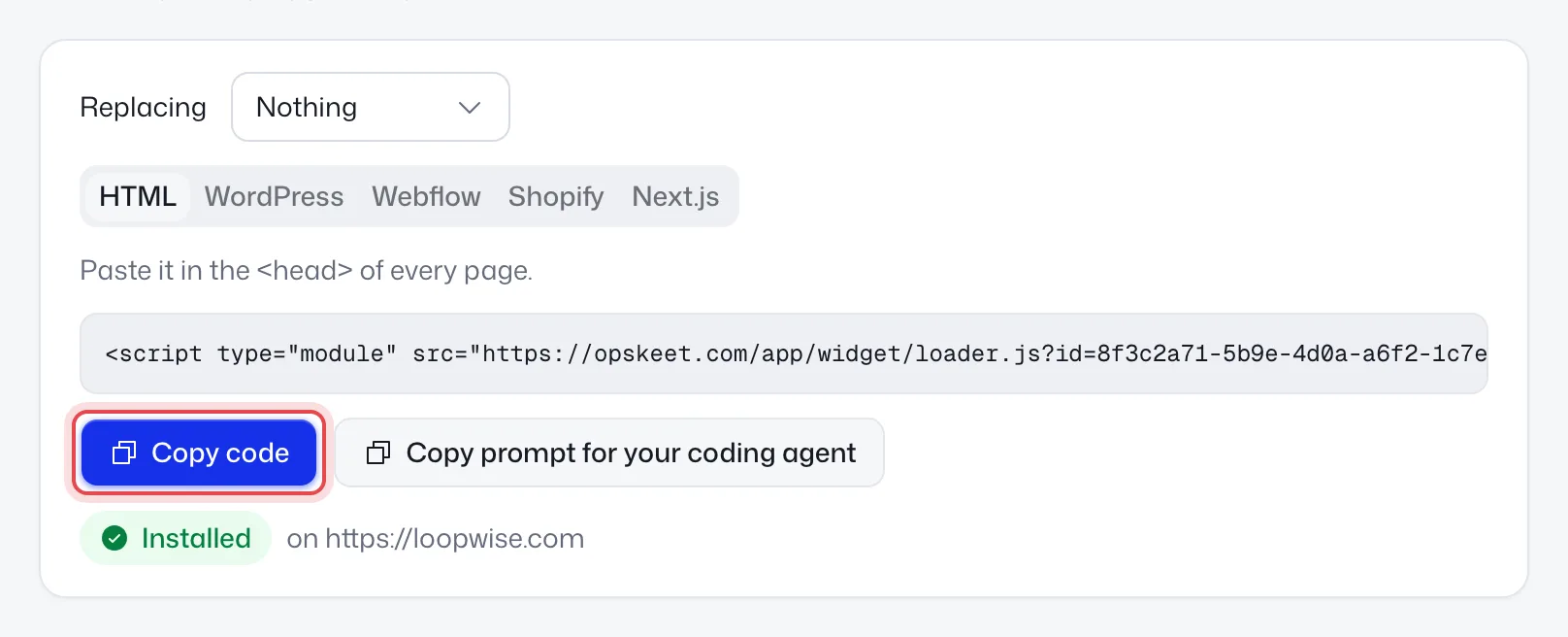
The code looks like this, with your project ID filled in:
<script
  type="module"
  src="https://opskeet.com/app/widget/loader.js?id=PROJECT_ID"
></script>
Add it to your site
Paste it in the <head> of every page, usually in your shared layout or template. Then publish your site.
Platform steps: Add Opskeet to WordPress, Shopify, Webflow or Next.js.
Using a coding agent like Claude Code or Cursor? Click Copy prompt for your coding agent and paste it there.
Check it's installed
The status at the top changes from Waiting for your site… to Installed on yoursite.com as soon as the chat loads on your site. Click Check again to look now.
To see both sides of a chat, click Test chat under Chat page. Test chats are kept out of reports and deleted after a day.
Good to know
- Load it on every page, even where you don't want the chat. Hide it there with
Opskeet.hide(). Pages without the script are missing from analytics and can't show new replies. - Don't change the URL, bundle the file or host it yourself.
- Single-page apps need nothing extra. Page changes are picked up on their own.
- Replacing another chat? Remove its code. Your site's calls to the old chat drive Opskeet instead.
Troubleshooting
It still says Waiting for your site. Check the code is on your published site, not just saved as a draft. The address in Settings → General must match the site where the chat loads. Subdomains count; other domains don't.
"Found on another domain". The chat loaded on a different address than your project's. Fix the Website address in Settings → General.
Two chats show. Remove the old tool's code. Opskeet shows a note while it still sees the old chat.
The chat doesn't show for visitors. Check you have a plan in All projects → Billing (in the project menu at the top of the sidebar), and that Show the launcher is on in Settings → Look.
Related
Did this help?
Related articles
- Create your account and first projectSign up for Opskeet with your email, add your website as a project, and finish setup in about 5 minutes. No password.
- Add Opskeet to WordPress, Shopify, Webflow or Next.jsStep-by-step instructions to add the Opskeet live chat script to WordPress, Shopify, Webflow and Next.js sites.
- The getting started checklistWhat each step in Opskeet's Get started checklist does, how steps tick off on their own, and how to hide the checklist.
- Share a chat link without installing anythingEvery Opskeet project has a hosted chat page. Link to it from emails, apps, social profiles or anywhere the widget can't go.
- Search and do anything with ⌘KUse Opskeet's command menu to search chats, contacts and articles, jump to any setting, and act on chats in plain words.