
Invite teammates and set roles
Invite your team to Opskeet, choose Owner, Admin or Agent roles, hand over ownership, and remove people. Every plan has unlimited seats.
Every plan includes unlimited teammates. Invite as many people as you need.
Invite someone
- Go to Settings → Team and click Invite. Or press ⌘K and pick Invite teammate.
- Enter their Email and pick a Role.
- Click Send invite.
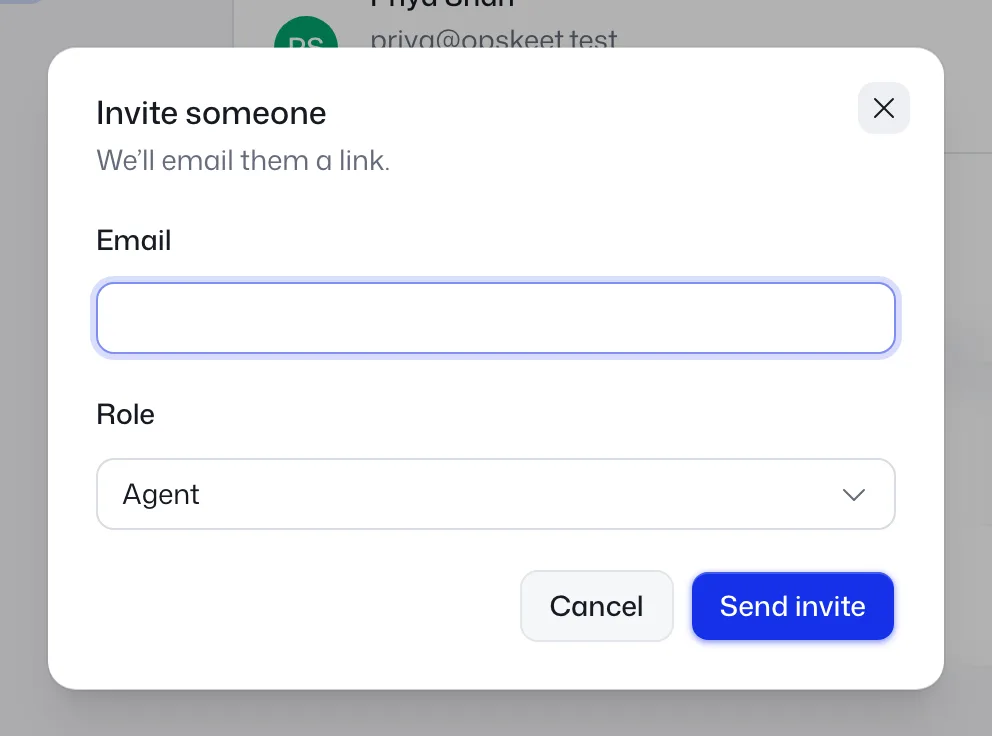
We email them a link. You can also copy the link and send it yourself. It works only for that email and expires in 7 days.
Pending invites show under Pending invites, where you can Resend or cancel them. Resending makes a new link, so older links stop working.
Only owners and admins can invite.
Roles
| Role | Can do |
|---|---|
| Owner | Everything, including deleting the project. One per project. |
| Admin | Settings, the team, knowledge, help center, outbound, and deleting the team's messages. |
| Agent | Chats and contacts. Agents can create tags and canned replies. |
Change someone's role in the list. It takes effect right away.
By default, only owners and admins can delete contacts. To let agents do it too, turn on Agents can delete contacts in Settings → Team.
Good at
Add skills under Good at for each teammate. Auto-assign uses them to route chats. See Assign conversations and auto-assign.
Hand over ownership
- Make them an Admin first.
- As the owner, open ⋯ next to them and click Make owner.
You become an admin. Billing stays with the person who pays. See Plans, free trial and billing.
Remove someone
Open ⋯ next to them and click Remove. They lose access right away, their conversations go back to Unassigned, and invites they sent stop working. You can invite them again later.
To leave a project yourself, go to Settings → General → Leave project. The owner can't leave without handing over ownership first.
Troubleshooting
The invite says it's for another email. Invites work only for the email they were sent to. Click Switch email and sign in with that address.
The invite expired. Ask an owner or admin to click Resend.
Did this help?
Related articles
- Get notified of new chatsTurn on Opskeet push notifications, sounds and email alerts so you never miss a chat, and see what needs a look in the notification bell.
- Install Opskeet on your phone or computerAdd Opskeet to your iPhone, Android or desktop as an app so it opens on its own and notifies you of new chats.
- Your profile, language and away statusChange your name, photo and language in Opskeet, set yourself as away, switch between light and dark theme, and log out.
- Plans, free trial and billingOpskeet plans, prices and the 14-day free trial. Every plan has every feature and unlimited seats. Change, cancel or get a refund.
- Pause a project to fit your planPause an Opskeet project to free a slot on your plan or move to a smaller plan. Resume it anytime. Nothing is deleted.