
See and fix what the AI learned from a page
View the exact text Opskeet's AI read from each page, edit it in place, or leave a page out without changing your website.
When the AI gets something wrong, check what it read. You can fix the text right in Opskeet without touching your website.
Open a page
- Go to Knowledge → Sources.
- Click a website (or ⋯ → View).
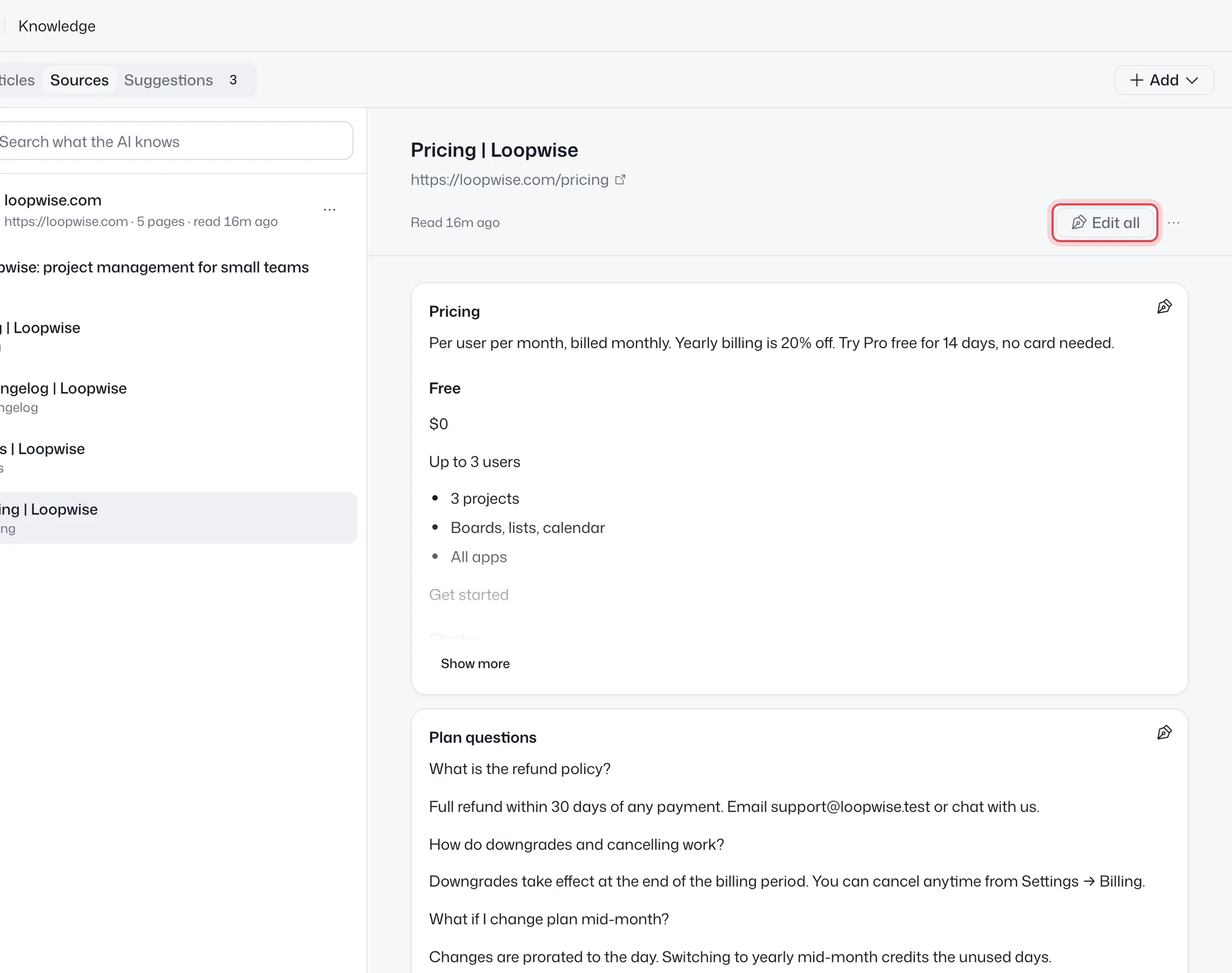
- Pick a page on the left. The right side shows What the AI reads, split into sections.
Edit the text
Click a section to edit it, or Edit all. Save, and the AI uses the new text in a few minutes. Edited sections show an Edited badge.
If the page changes on your site later, you're asked whether to Keep mine or Use the new version.
Leave a page out
Open More for this page and click Leave this page out. The AI stops using it. Use this page again brings it back.
To drop your edits, click Use the site's text.
Find where an answer came from
In the AI's Try it panel, each answer lists the sources it used. Click one to open it here and fix it. See Test the AI before visitors see it.
Did this help?
Related articles
- Set up the AI agent to answer visitorsTurn on Opskeet's AI agent, choose when it answers, and set its limits so it replies to visitors from your own knowledge.
- Teach the AI with your website, documents and answersAdd your website, PDFs, Word files and written answers to Opskeet's Knowledge so the AI agent answers visitors correctly.
- Written answers: teach the AI what isn't on your siteAdd written answers so Opskeet's AI knows policies and facts that aren't on your website. Import and export them as CSV.
- Test the AI before visitors see itAsk Opskeet's AI questions in the Try it panel, see how sure it is and which sources it used, and fix wrong answers.
- Set the AI's name, tone, guidelines and guardrailsGive Opskeet's AI agent a name and brand voice, tell it how to answer, and set guardrails for what it must never do.