
Teach the AI with your website, documents and answers
Add your website, PDFs, Word files and written answers to Opskeet's Knowledge so the AI agent answers visitors correctly.
On this page
The AI answers only from what you add in Knowledge. It never makes things up from general knowledge. The more complete your knowledge, the more chats it solves.
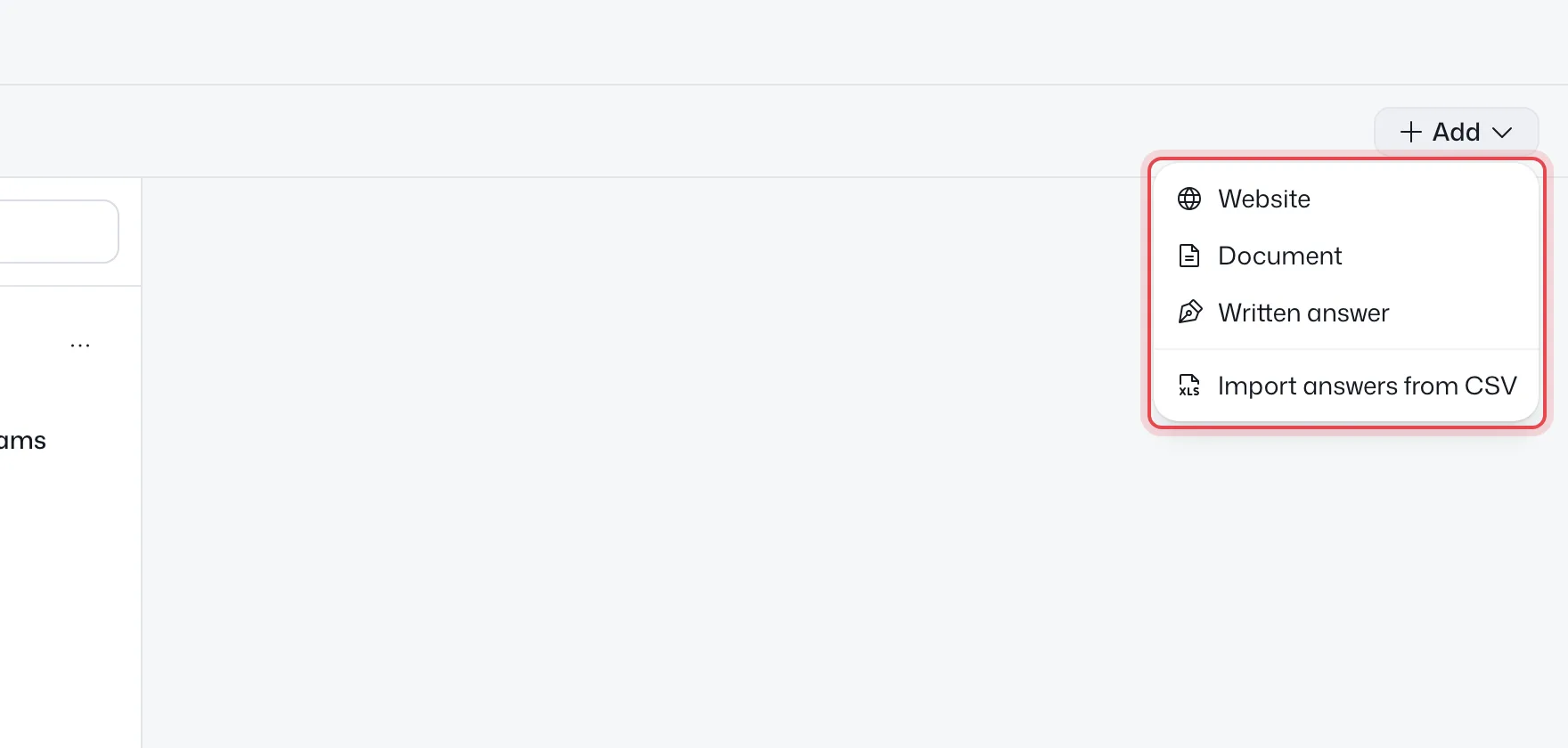
What you can add
| Source | Best for | Shown to visitors? |
|---|---|---|
| Website | Your public site and docs | Yes, the AI can link pages |
| Document | PDF, Word, text, Markdown, HTML or CSV, up to 4 MB | Never shown or linked |
| Written answer | Things not written down anywhere else | Never shown or linked |
| Help articles | Your published help center | Yes, linked as a card |
Published help articles are used automatically. You don't add them as a source.
Only owners and admins can add, edit or remove knowledge.
Add your website
- Go to Knowledge → Sources and click Add → Website.
- Enter the address and click Find pages. This can take a few minutes.
- When it's ready, click Learn from it.
- Tick the sections and pages the AI should read. Blog, careers and legal pages start unticked.
- Click Read N pages.
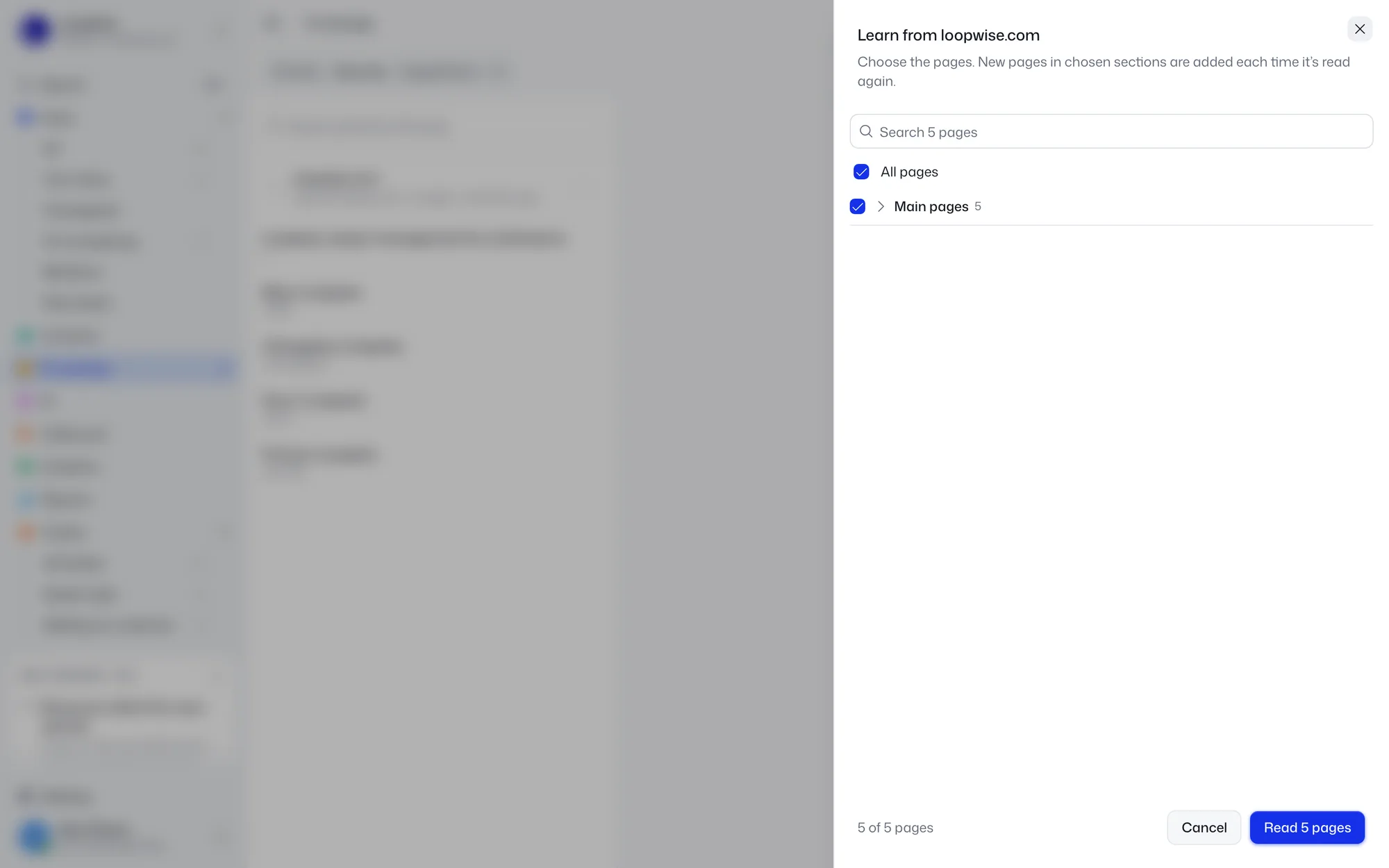
New pages in the sections you picked are added each time the site is read again. Sections you left out stay out.
Keep it fresh
Open the ⋯ menu on the website:
- Read it again now reads the site right away.
- Read it again sets how often: Daily, Weekly (default) or Monthly.
Unchanged pages are skipped. If a read fails, the AI keeps what it already knew.
Pages that weren't read
Click N not read in the page list to see why:
- Blocked by the site: bot protection stopped the reader. Allow it in your firewall settings.
- Off-limits in robots.txt: your robots.txt disallows it.
- Not found or Couldn't load: the page is missing or broken.
- No text: the page had nothing to read.
Only public pages can be read. Pages behind a login can't.
Add a document
- Click Add → Document.
- Choose a PDF, Word document, or a text, Markdown, HTML or CSV file up to 4 MB.
To update it, use ⋯ → Replace. The old version stays until the new one is read, so a bad file changes nothing.
Add a written answer
Click Add → Written answer, then fill in Question or topic and Answer. Written answers rank first and win when sources disagree. More in Written answers.
Keep a source for your team only
Tick Team only in a source's ⋯ menu. Your team still finds it in the inbox, but the AI never uses it with visitors. Good for internal policies.
Limits
- Up to 50 websites and documents per project.
- Up to 3,000 website pages per project.
- Up to 1,000 written answers.
Check what the AI knows
Use the search box at the top of Sources. It runs the same search the AI uses, so you see what it would find. Click a source to see and fix the exact text it read: See and fix what the AI learned.
Did this help?
Related articles
- Set up the AI agent to answer visitorsTurn on Opskeet's AI agent, choose when it answers, and set its limits so it replies to visitors from your own knowledge.
- Written answers: teach the AI what isn't on your siteAdd written answers so Opskeet's AI knows policies and facts that aren't on your website. Import and export them as CSV.
- Test the AI before visitors see itAsk Opskeet's AI questions in the Try it panel, see how sure it is and which sources it used, and fix wrong answers.
- Set the AI's name, tone, guidelines and guardrailsGive Opskeet's AI agent a name and brand voice, tell it how to answer, and set guardrails for what it must never do.
- When the AI hands a chat to your teamLearn when Opskeet's AI agent hands a chat to a person, what your team sees, and how to take over or hand a chat back.