
Customize the chat widget home screen
Choose which blocks show on the Opskeet chat widget home screen, reorder them, add contact buttons and pick what opens first.
Home is the first screen visitors see when they open the chat. You decide which blocks show, in what order, and what visitors can do from there.
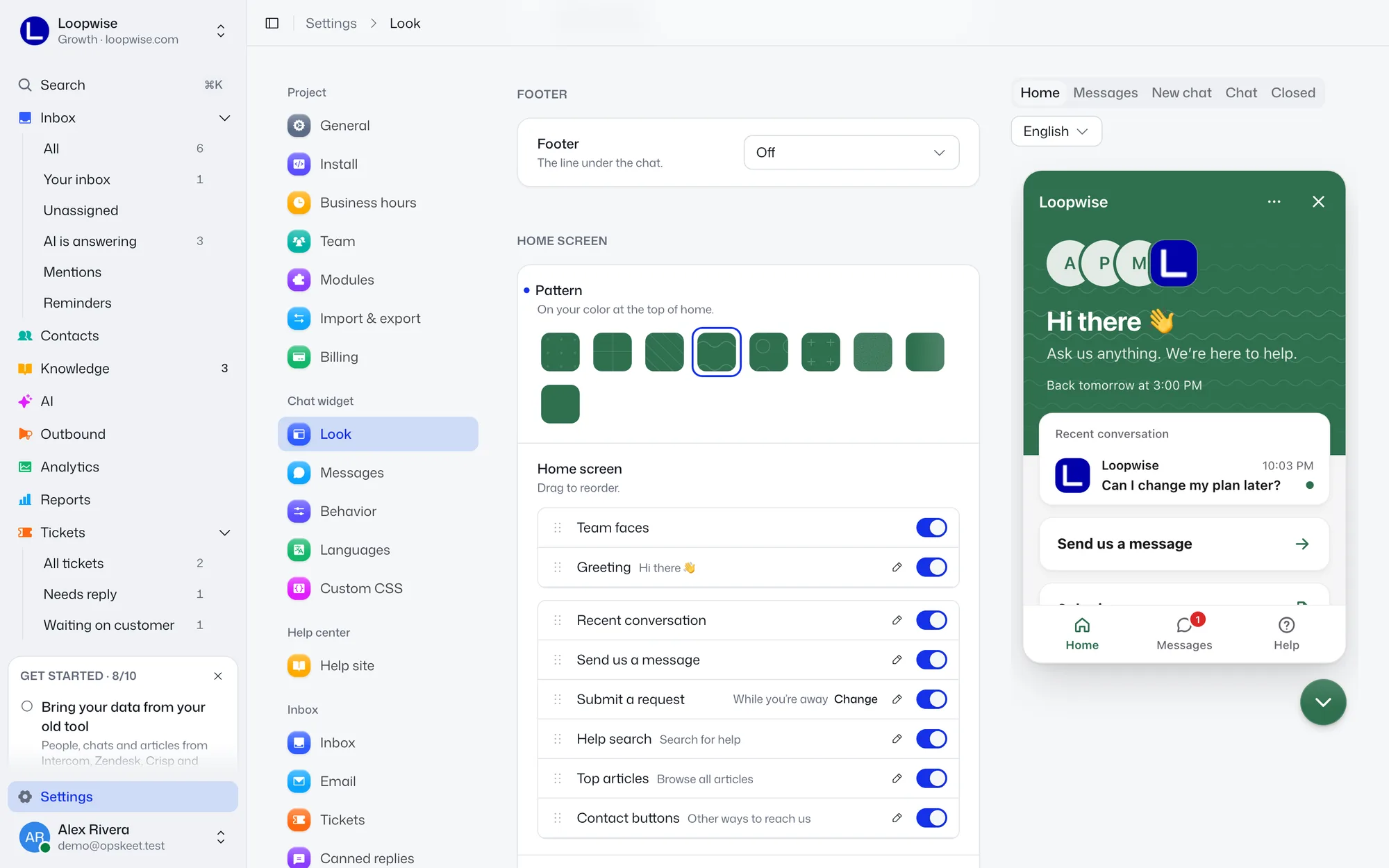
Go to Settings → Chat widget → Look and scroll to Home screen.
Blocks
Drag blocks to reorder them, and switch each on or off.
On your color (the top):
- Team faces
- Greeting
Cards:
- Recent conversation
- Send us a message
- Submit a request
- Help search
- Top articles
- Contact buttons
Blocks with nothing to show hide themselves, like a recent conversation when there's none. Some follow other settings:
- Submit a request follows your Tickets settings. The row shows Tickets are off, While you're away or Always, with a Change link.
- Help search follows Behavior → Help articles, and Top articles shows only with it. If your help center is off, the rows say Help center is off.
Click the pencil beside a block to edit its wording, like the greeting or introduction. To change other wording, see Change the wording.
If Send us a message is hidden and Opens on isn't A new chat, you see "Visitors can't start a chat from home." with a button to fix it.
Pattern
Pattern sets the texture on your color at the top: Dots (default), Grid, Diagonal lines, Waves, Circles, Plus signs, Grain, Gradient or None.
Contact buttons
Add up to 8 buttons that open other ways to reach you.
- Open the Add a button menu in the Contact buttons row.
- Pick a kind: WhatsApp, Phone, Email, Messenger, Instagram, Telegram, X or Your own link.
- Paste a number, address or link.
WhatsApp and Phone numbers need a country code, like +1. Messenger, Instagram, Telegram and X accept a username or a pasted profile link. A custom link takes a label up to 40 characters, like "Book a demo". Empty buttons are dropped on save.
What opens first
Opens on sets the screen visitors land on: Home (default), A new chat or Help. Help needs published articles. Without them, visitors see home.
Top articles
When Help articles is on in Behavior, Top articles shows Most read (default) or Your picks. For your picks, choose up to 4 published articles with Add an article and drag to reorder. Unpublished ones are skipped.
Click Save to apply.
Did this help?
Related articles
- Change the chat widget color, logo and launcherMatch the Opskeet chat widget to your brand: set the color, logo, theme, corners, launcher icon, position and footer in Settings.
- Identify signed-in users with a secure tokenShow who's chatting in the Opskeet inbox by passing a signed token from your server, so chats follow users across devices.
- Control the chat with JavaScriptOpen, close and hide the Opskeet chat from your own buttons and code, open help articles, switch language and listen to chat events.
- Track events from your siteSend custom events from your site to Opskeet to see what visitors did before they wrote, build goals and trigger outbound messages.
- Chat widget settings: email ask, files, typing and onlineChoose what visitors see and share in the Opskeet chat: asking for email, file uploads, typing, online dot, seen marks and reply time.