
Set business hours and away replies
Set your opening hours, time zone and holidays, and choose what visitors see and get when your team is away from the inbox.
Business hours tell visitors when you're around. Outside them, they see when you're back, and an automatic reply goes out if they write.
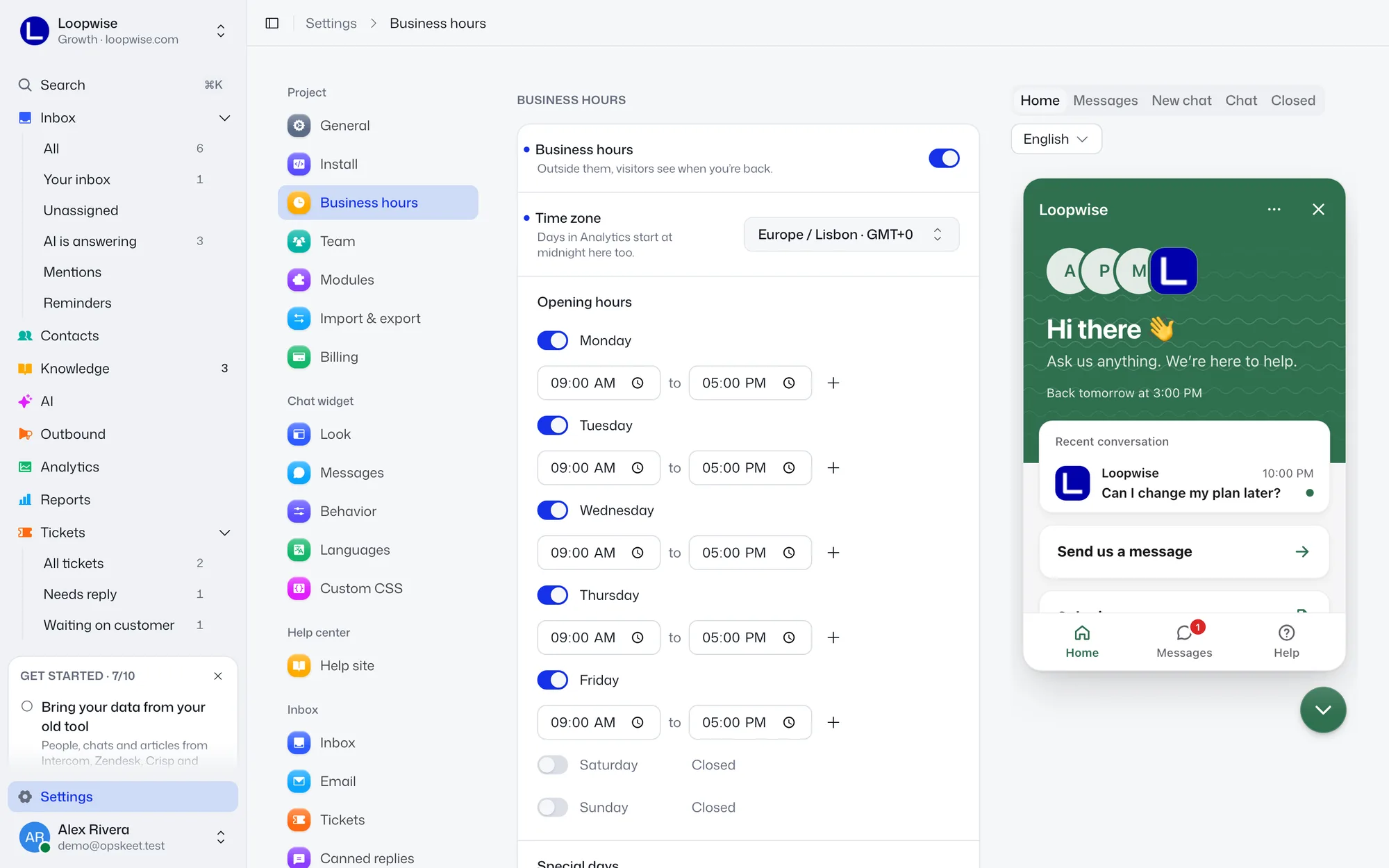
Set your hours
- Go to Settings → Business hours. Owners and admins can edit.
- Turn on Business hours.
- Pick your Time zone. Search for a city or zone. Analytics days start at midnight here too.
- Under Opening hours, toggle each day. The default is Monday to Friday, 9:00 to 17:00.
- Click Save.
Each day can have up to 3 ranges, for example a break. Click + (Add more hours). Each range must end after it starts. Use 24:00 for end of day.
Special days
Add holidays or days with different hours. Pick a date, then Closed or Different hours. Add a Status for visitors (up to 80 characters), shown in the chat all that day.
When you're away
These show once hours are on.
| Setting | What it does |
|---|---|
| Open when someone's online | On by default. While a teammate uses the app, the chat works as in business hours |
| The chat | Chat stays open (default) or Hide the chat. Visitors with an open chat can always reach it |
| Automatic reply | On by default. Sent once when someone writes while you're away |
The reply wording is in Settings → Messages → Automatic reply when you're away. The default is "Thanks for your message! We're away right now and will reply as soon as we're back."
It isn't sent if your team already answered since you last closed, or if a teammate is online and Open when someone's online is on.
Where hours also apply
- Your reply target counts open hours only.
- The snooze menu offers Next opening.
- Reminders warn you with "You're closed".
- Auto-assign waits and pass-on timers pause while you're closed. See assign conversations.
Questions
Visitors see "away" but we're online. Turn on Open when someone's online.
The chat button disappeared. The chat is set to Hide the chat and you're closed.
Did this help?
Related articles
- Find and filter chats in your inboxLearn the inbox views, tabs, search, filters and bulk actions so you can find any chat or email and clear your queue fast.
- Reply to customers: send, quote, attach and editSend replies in the inbox, quote a message, attach files, use fill-ins, and edit or delete a message after you send it.
- Internal notes and @mentions for your teamLeave private notes on a chat and @mention a teammate so they get notified. Visitors never see notes, only your replies.
- Create and use canned repliesSave answers you give often and insert them with a slash. Create one from the reply box, with fill-ins like the customer's first name.
- Assign conversations and auto-assignAssign chats by hand or let Opskeet spread them evenly across online teammates, with skills, waiting rules and pass-on.